Introducing the BeyondWords MCP
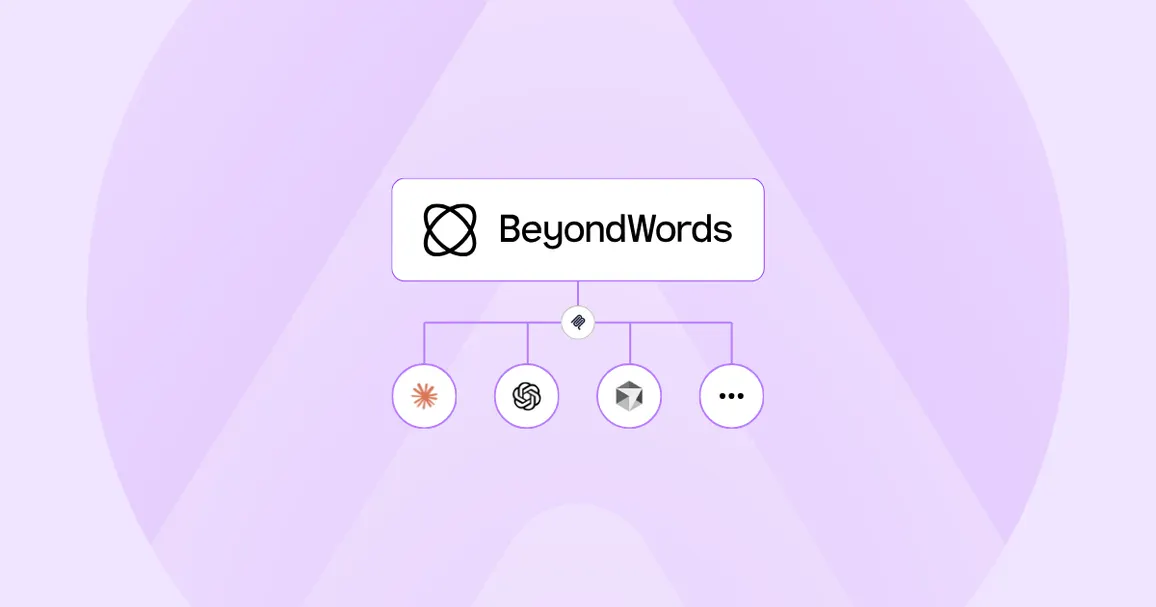
With the BeyondWords MCP, you can configure and manage your BeyondWords account, projects, and content directly from your AI assistants.
For example, you can:
- Ask Claude to set a new pronunciation rule
- Ask ChatGPT how many listens your publication got last month
- Ask Cursor to update the BeyondWords player colors to match the styles in your codebase
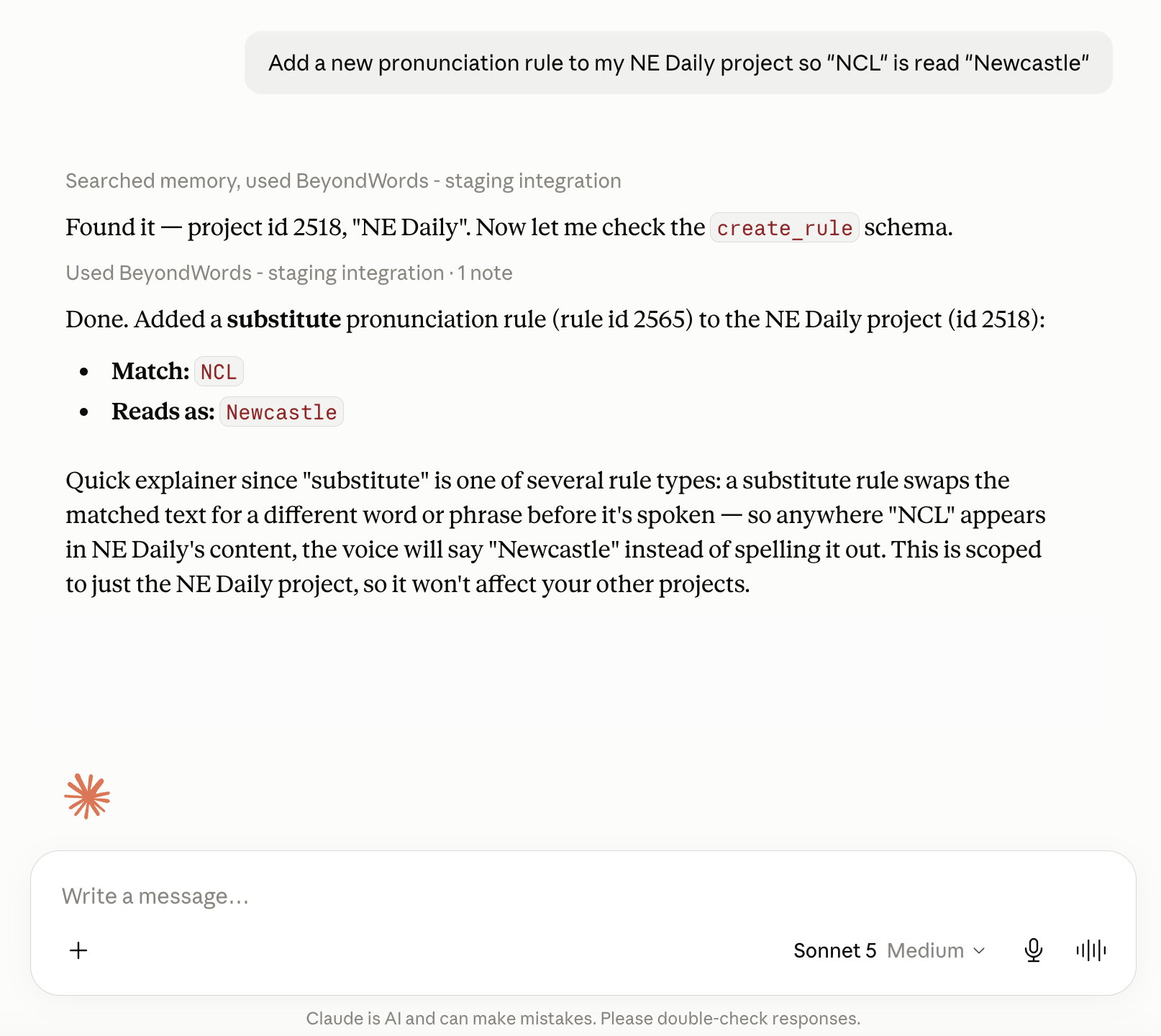
Work with BeyondWords through conversation, in the AI assistants you already use.
How it works
MCP, or Model Context Protocol, is an open standard that allows AI assistants to connect to external tools and data sources. The BeyondWords MCP creates a secure, private connection between a compatible AI assistant and your BeyondWords account.
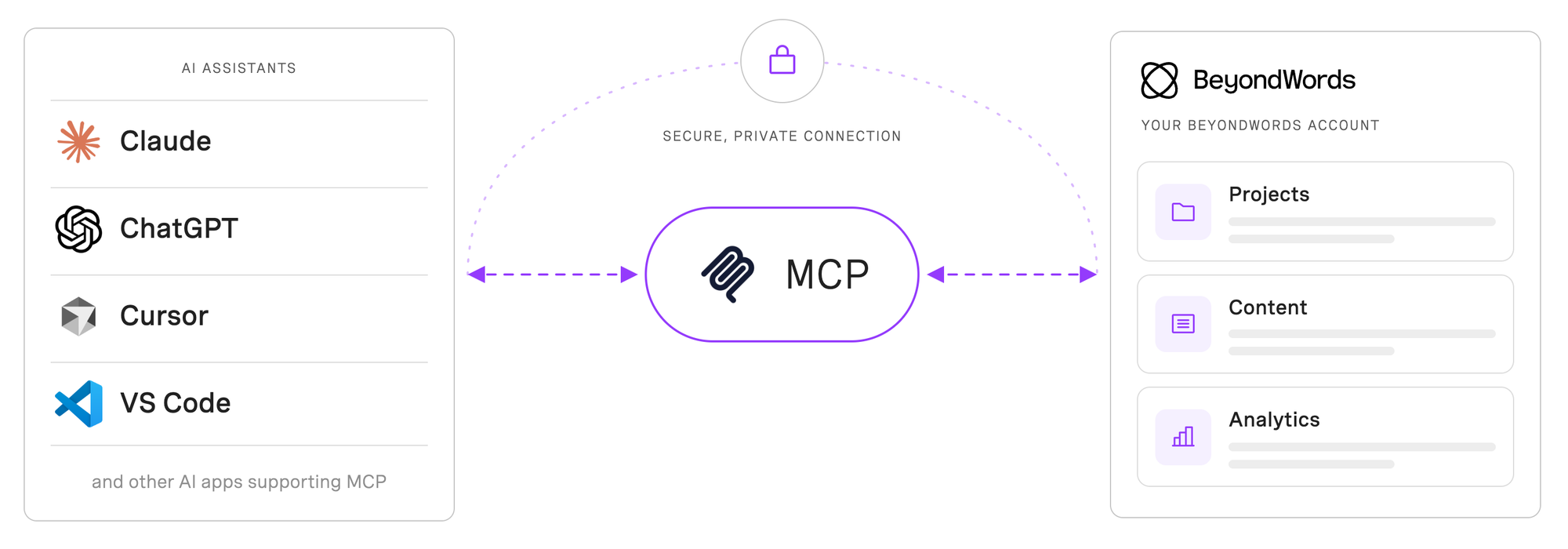
The BeyondWords MCP works with Claude, Claude Code, ChatGPT, VS Code, Cursor, and other AI apps supporting remote MCP servers using Streamable HTTP. Depending on the app, this may be referred to as a custom connector, plugin, or server.
There’s no server to run or API keys to manage. You sign in securely through OAuth and choose whether to give your assistant read-only or write access to your BeyondWords account.
And the connection is totally private to you: other users won’t be able to access your BeyondWords data.
What you can do
The BeyondWords MCP currently allows you to:
- Create and update projects
- Create, update, regenerate, and manage content
- Explore analytics and performance
- Create and manage pronunciation rules
- Manage and configure voices
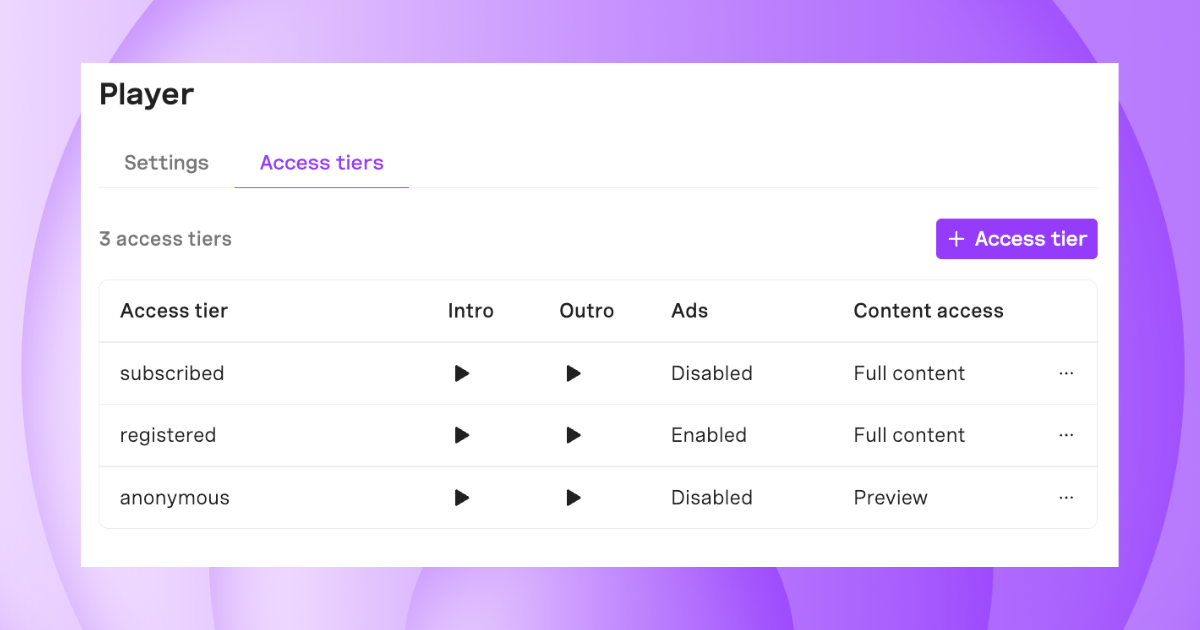
- View and update player settings
You can combine information and actions from BeyondWords with each assistant’s own capabilities and other connected tools.
For example, you can ask ChatGPT to pull listening data from your BeyondWords projects, analyze the results, and use them to create a report in Google Docs.
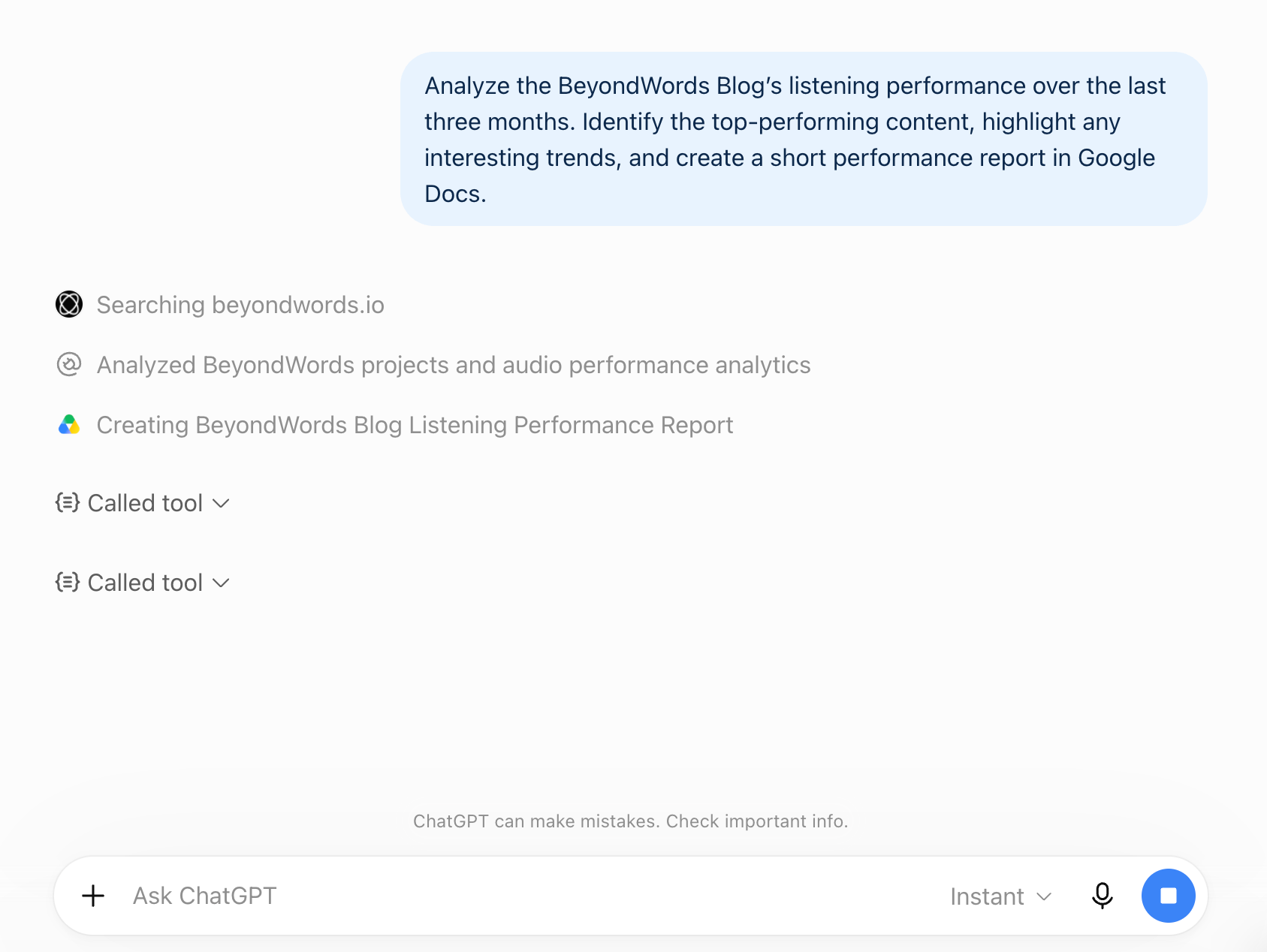
This is just the beginning for the BeyondWords MCP. We’ll be adding more capabilities over time, and we’d love to hear what you’d like to do with it next.
Get started
To connect your BeyondWords account to an AI assistant:
- Log into your BeyondWords dashboard
- Click your profile picture, then select Profile
- Go to Connected apps and click Connect
- Choose the AI app you’d like to connect, then follow the instructions provided
We’d love to hear how you’re using the BeyondWords MCP and what you’d like to do with it next. If you have any questions, feedback, or suggestions for new capabilities, get in touch.